Timeline groups and layers
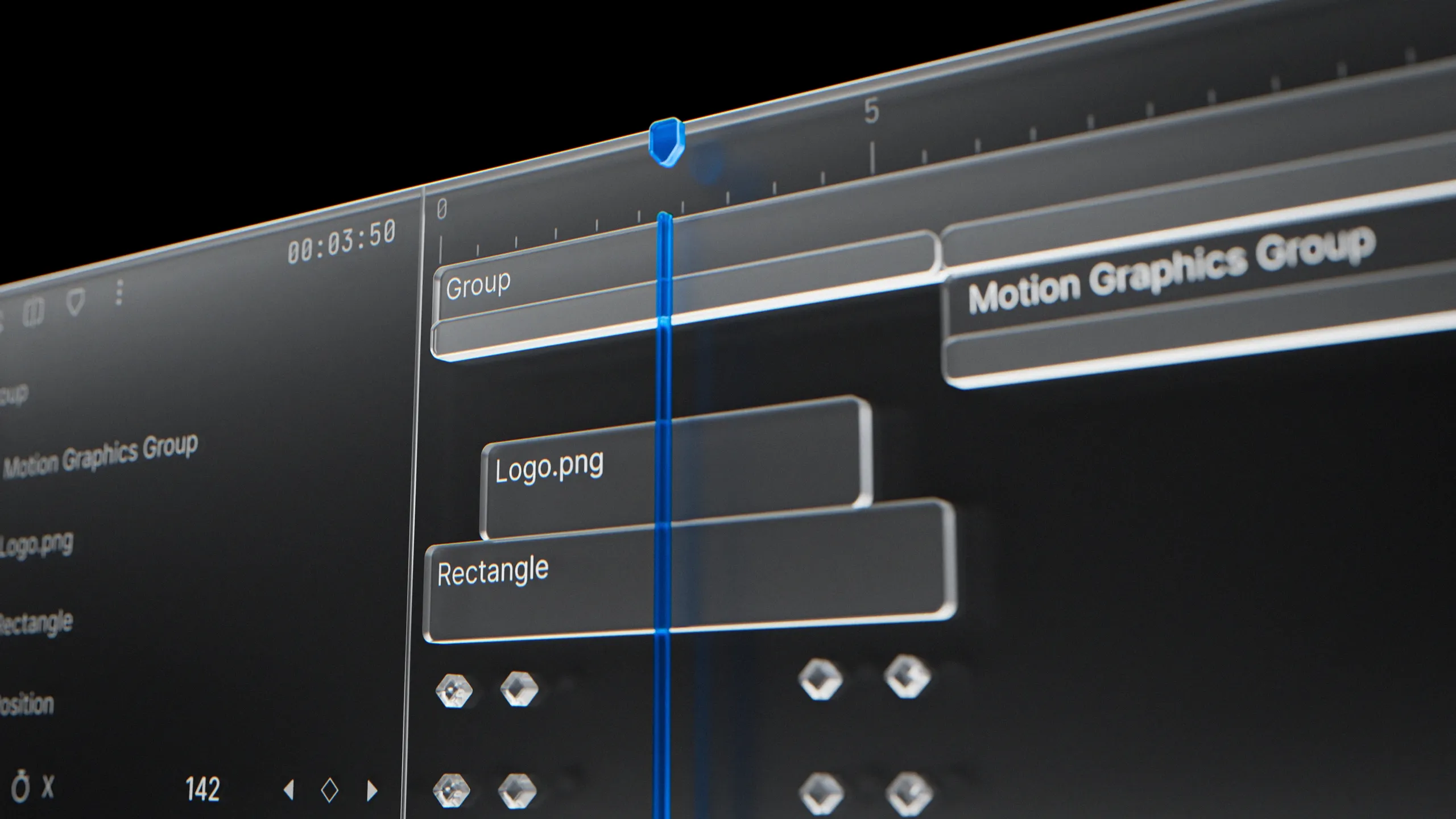
The timeline in Diffusion Studio has been redesigned. The old track-based structure is replaced by layers, with new tools for grouping, sequencing, nested scenes, adjustment layers, and more control over how your projects are organized.
Layers
The timeline now uses layers instead of tracks. Each clip sits on its own layer, and layers can be freely renamed and reordered to control stacking and priority. Give a layer a meaningful name like “Voiceover” or “Lower Third” and find it instantly in a complex project.
You can multi-select layers by dragging on the timeline, making it fast to reorder and reorganize even in dense projects.
Sequences
Layers give each clip its own row, but sometimes you want multiple clips on a single row. That is what sequences are for. Select layers and press ⌘S to combine them into one sequence row. This gives you a hybrid approach: layer-based organization with the ability to line up clips in a shared track when it makes sense.
Splitting a clip also creates a sequence automatically. When you split a media clip, rectangle, or any layer, the result is wrapped into a sequence so the pieces stay on one row. This keeps the traditional NLE editing feel inside the layer-based structure without any extra steps.
Press ⌘⇧G to break a sequence back into individual layers.
Groups
Select any set of layers and press ⌘G to group them. Groups appear as a single collapsible layer on the timeline. Expand a group to see and edit its contents, collapse it to save space and move everything as one unit. Groups can be nested for deeper organization, useful for bundling a title sequence or keeping a video clip paired with its audio.
Press ⌘⇧G to ungroup.
Scenes inside scenes
You can now insert any scene from the canvas into another scene. If you have multiple scenes in a project, drop one inside another to merge, layer, and adjust them together. Nested scenes are expandable on the timeline just like groups. You can add content inside or remove it without flattening anything. This opens up modular, reusable compositions within a single project.
Adjustment layers
A new adjustment layer type is available. It applies transform adjustments across everything beneath it on the timeline, without moving or editing individual elements. Think of it as a camera layer. Currently it supports transform properties. Add one when you need to reposition, scale, or rotate the overall view without touching the underlying layers.
Layer ordering
Reorder layers quickly with keyboard shortcuts. Press ] to bring a layer to the front and [ to send it to the back.
Clip content and trim content
Scenes now have a clip content toggle. Turn it on to hide anything outside the scene boundary. Turn it off to see the full content while editing.
Groups have a similar concept for time. Resize a group’s duration on the timeline, and its contents are trimmed to fit. If you want to undo that trimming, uncheck “Trim content” in the right sidebar under the group’s time section. This lets you extend or shorten a group’s visible duration without permanently cutting what is inside.
Smarter duplication
Hold ⌥ (Option/Alt) to duplicate a selected element, or press ⌘D. Duplication now behaves differently depending on context. Elements on the canvas duplicate to the right of the original. Elements inside a scene duplicate in place, preserving all transform values. This removes the old behavior where duplicates always landed at a fixed offset regardless of context.
Property controller redesign
The property controller, the inline keyframe row that expands under each layer on the timeline, has been redesigned. Individual properties like position, scale, and rotation now have a cleaner layout with easier keyframe navigation and editing.
Timeline visual updates
The timeline has a new, more saturated color palette. Layers are easier to distinguish at a glance, and the overall look is sharper during long editing sessions. Timeline item sizes have been adjusted, and a new smallest size option at 28px height is available for fitting more layers into view.
Masking improvements
The masking feature and its UI have been improved. More masking updates are on the way.
What else is new
- Timeline scroll and zoom performance improvements
- Playhead and scrubbing interactions refined
- Bug fixes and performance improvements across the timeline and platform